
Internal M.2 NVMe SSD: how to choose the right model for your PC, laptop or PS5
An internal M.2 NVMe SSD can reduce boot times, speed up game loading and make large file transfers much smoother. However, just because a model advertises several thousand megabytes per second does not necessarily mean it will suit your machine. An incompatible interface, an unsuitable capacity or inadequate cooling can quickly limit performance and make the purchase poor value.
Here are the criteria to consider before choosing your internal SSD, along with a selection suited to different users and needs.
Pitfalls to avoid when buying an M.2 NVMe SSD
1. Confusing the M.2 form factor with the interface
The term M.2 primarily refers to the SSD’s physical form factor. It does not mean that the device will work with any M.2 connector. Some slots only support SATA, whereas an NVMe SSD requires a PCIe connection.
Before placing your order, check your motherboard, laptop or console manual to confirm:
- the presence of an M.2 PCIe NVMe slot;
- the supported length, usually M.2 2280, or 22 × 80 mm;
- the compatible PCIe generation;
- the available space for installing a heatsink.
A PCIe 4.0 SSD will generally work in a PCIe 3.0 slot, but its speed will be limited by the older generation. Conversely, a PCIe 5.0 SSD can only reach its full potential with compatible hardware.
2. Looking only at sequential speed
Figures such as “7,400 MB/s read speed” generally refer to sequential transfer rates measured under specific conditions. They are useful for copying large files, editing videos or loading certain game libraries, but they do not tell the whole story when it comes to everyday use.
For a PC SSD or laptop SSD, also consider:
- random read and write performance, expressed in IOPS;
- whether it has cache memory, DRAM or HMB;
- how stable transfer speeds remain during prolonged transfers;
- power consumption and operating temperature under load.
3. Underestimating heat generation
PCIe 4.0 SSDs, and especially PCIe 5.0 SSDs, can become hot during intensive transfers. When temperatures become excessive, the SSD automatically reduces its speed to prevent overheating. This is known as thermal throttling.
The heatsink built into the SSD, or the one supplied with the motherboard, therefore deserves your full attention. In a compact computer, laptop or PS5, carefully check its thickness: a model that is too bulky could prevent the cover from closing.
Criteria to compare before choosing
Capacity: 1 TB, 2 TB or 4 TB?
An 1 TB NVMe SSD is enough for installing an operating system, everyday applications and a selection of games. If you have a larger library, store high-definition videos or work on creative projects, a 2 TB NVMe SSD will give you more room to work with.
The 4 TB NVMe SSD is mainly aimed at users who regularly handle large files, video footage, virtual machines or a substantial number of games. Generous capacity helps you avoid using multiple drives, but it is only worthwhile if you genuinely intend to use it.
Also remember to leave some space free to help with data management and maintain consistent performance. The capacity advertised by the manufacturer is a commercial figure: the space actually shown by the system will be slightly lower.
PCIe 3.0, PCIe 4.0 or PCIe 5.0
- PCIe 3.0: an affordable choice for upgrading a system, and still considerably faster than a SATA SSD for many tasks.
- PCIe 4.0: the best compromise for gaming, content creation and transferring large files.
- PCIe 5.0: a solution for newer systems fitted with a compatible slot. The benefits are most noticeable during demanding transfers and in certain professional applications.
The speeds quoted by manufacturers are theoretical maximums. Actual performance varies according to the processor, motherboard, operating system, how full the SSD is and the type of files being handled.
Endurance and warranty
The TBW rating indicates the theoretical total amount of data expected to be written to a model. It allows you to compare several SSDs, but it is not a guaranteed operating lifespan. Even an SSD with no moving parts can fail, so regular backups remain essential.
For a work computer, also check the length of the manufacturer’s warranty and the statutory guarantee applicable in the European Union. When installing the drive, shut down and fully unplug the computer, and minimise the risk of electrostatic discharge.
Our selection for different users
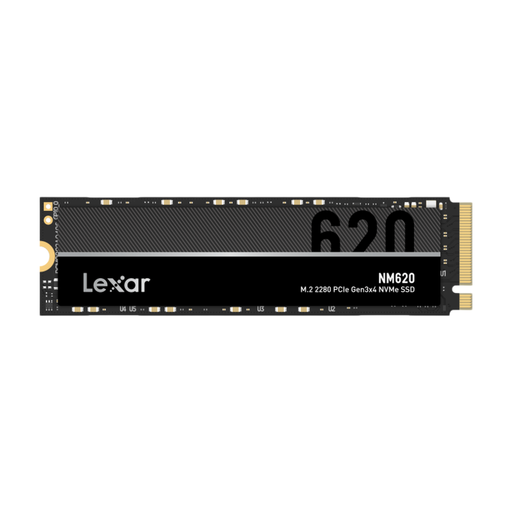
Lexar NM620 1 TB M.2 NVMe Internal SSD
Why this is a good match for this user: its M.2 2280 form factor and PCIe 3.0 x4 interface are suitable for upgrading a compatible PC, without paying for the performance of a newer platform.
It shows that higher transfer speeds are not essential when the motherboard is limited to PCIe 3.0. However, make sure your system supports NVMe before buying.
1 TB capacity, advertised read speeds of up to 3,300 MB/s and write speeds of up to 3,000 MB/s according to the supplied specifications.
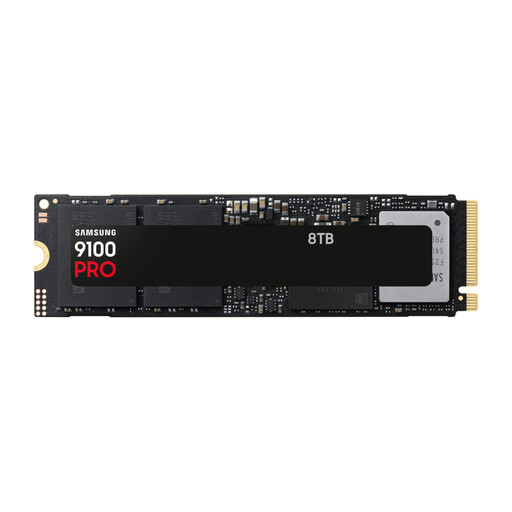
Samsung MZ-VAP1T0 1 TB M.2 PCI Express 5.0 NVMe V-NAND TLC
Why this is a good match for this user: this SSD is designed for newer systems that can make use of PCIe 5.0, and for users who want to minimise transfer times.
Its heatsink is pre-installed, so there is no need to buy one separately. You will nevertheless need a motherboard with a PCIe 5.0 slot and sufficient airflow.
M.2 2280 form factor, PCIe 5.0 x4 interface and advertised speeds of up to 14,700 MB/s read and 13,300 MB/s write.
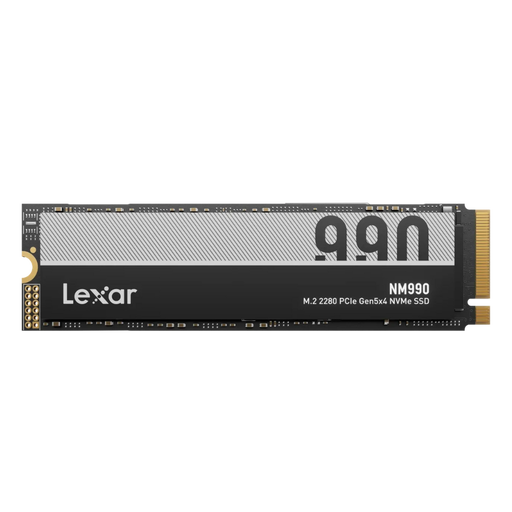
Lexar NM990 2 TB M.2 PCI Express 5.0 NVMe
Why this is a good match for this user: its 2 TB capacity and PCIe 5.0 interface meet the demands of game storage, video projects and large professional files.
Thermal management is something to monitor during prolonged use. However, check the supplied heatsink and your case’s airflow.
2 TB capacity, 8-channel controller, DRAM cache and advertised random performance of up to 2,000/1,500 K IOPS.
Looking for more options?
We have put together a complete, real-time-updated selection of products that meet these purchasing criteria as well as European safety requirements.
Installation and compatibility: essential checks
Before installing your SSD:
- Fully shut down the PC, laptop or console, then disconnect the power supply.
- Check that the slot supports PCIe NVMe, rather than M.2 SATA only.
- Insert the module at an angle of approximately 30 degrees, without forcing the connector.
- Secure it using the screw supplied by the motherboard or device manufacturer.
- Add a compatible heatsink if necessary.
- In Windows, initialise and format the drive using the Disk Management tool.
For a PS5 SSD, check the console’s requirements, supported capacity and whether a suitable heatsink is included. Even when an SSD is advertised as compatible, installation must comply with the limits set by Sony and may require the relevant system software version.
Frequently asked questions about internal M.2 NVMe SSDs
Which M.2 NVMe SSD should I choose for PC gaming?
A 1 TB or 2 TB PCIe 4.0 model is a well-balanced choice for most modern PCs. Before looking for the highest transfer speed, check your motherboard’s compatibility, your case’s airflow and the space available for installing your games.
Is an M.2 NVMe SSD suitable for a laptop?
Yes, provided that the laptop has an M.2 PCIe NVMe slot in the correct size. Single-sided models are generally easier to fit into a slim chassis. Check the manufacturer’s documentation before removing the cover: some computers use soldered storage or offer limited upgrade capacity.
How long does an internal SSD last?
This depends in particular on the amount of data written, the TBW endurance rating, operating temperature and usage. No storage medium is immune to failure, so back up your important files to another drive or a separate location.