
How to Choose the Right USB-C HDMI Hub: A Buyer’s Guide
By our Joybuy product experts, July 16, 2026
MacBooks, ultrabooks... modern laptops are becoming ever thinner and lighter. The trade-off? Connectivity is often stripped down to the bare minimum: just one or two USB-C ports for everything. Plugging in an external monitor, a hard drive, and a mouse while charging your device at the same time can become a real challenge.
This is where the USB-C HDMI hub comes in—the smart accessory that turns a single port into a true workstation. Follow our guide to find the perfect model for your needs and discover our selection of the best products of 2026.
How to Choose a USB-C Multiport Adapter
The market is flooded with options, from simple adapters to feature-packed docking stations. To make sense of it all, a few technical criteria are essential.
1. Identify Your Connectivity Needs
The first and most important step: take stock of the peripherals you connect on a daily basis.
- USB-A Ports: Essential for connecting older mice, keyboards, external hard drives, or USB flash drives. Check the standard (USB?3.0 at a minimum for fast transfers, up to 5?Gbit/s).
- Ethernet Port: If you need a stable and fast wired internet connection for remote work or online gaming, an Ethernet port is a key advantage.
- Card Readers: For photographers, videographers, or content creators, a USB-C hub with an SD and/or microSD card reader allows you to transfer files without an extra adapter.
- Multiple Video Outputs: Some hubs offer multiple HDMI ports or an HDMI/DisplayPort combination for a dual-monitor setup.
2. Check Video and Power Capabilities
Not all HDMI ports are created equal. For a pristine image, especially on a high-resolution monitor, the video specifications are paramount.
- Resolution and Refresh Rate: A 4K USB-C dock is standard today. However, pay close attention to the refresh rate. 4K at 30 Hz is sufficient for office work, but 4K at 60 Hz provides a much smoother picture, which is essential for video editing, gaming, or simply for better viewing comfort.
- Power Delivery (PD): This feature is essential. It allows you to charge your laptop through the hub itself, without tying up another port. Check the maximum power supported (in watts): 60?W to 100?W is a common range that covers the needs of most ultrabooks.
3. Ensure Compatibility and Portability
Having a hub is great. Having a compatible one is better.
- Device Compatibility: Make sure your computer's USB-C port supports "DisplayPort Alt Mode" (or DP Alt Mode), which is required for video output. This is the case for most recent MacBooks, Dell XPS models, and other ultrabooks.
- Operating System: Most hubs are compatible with Windows, macOS, and Linux, but it never hurts to check, especially if you're looking for a USB-C hub for MacBook and are counting on seamless integration with the Apple ecosystem.
- Form Factor: If you're often on the go, the weight and size of the hub are important factors. Compact aluminium models are an excellent compromise: they are lightweight, durable, and promote good heat dissipation.
Our Recommended USB-C HDMI Hubs
Here are three options that cater to different needs, from the mobile professional to the demanding creator.
Verbatim USB-C Multiport HUB (49142)
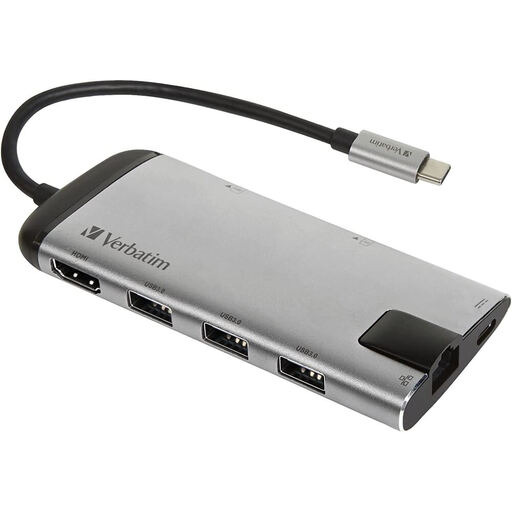
Why it stands out: The ultimate Swiss Army knife. This 8-in-1 hub is an ultra-versatile solution that meets most needs in a compact and sleek design.
Pros:
- Comprehensive connectivity: It features 1 4K HDMI port, 3 USB 3.0 ports, 1 Gigabit Ethernet port, SD/microSD card readers, and 1 USB-C Power Delivery port.
- Sleek finish: Its brushed aluminium casing isn't just for looks: it ensures good heat dissipation and excellent durability.
- Portability: Lightweight (around 70 g) and compact, it slips easily into any laptop bag.
- Pass-through charging: The USB-C PD port allows you to charge your laptop while using the other ports.
Who is it for? The perfect ally for mobile professionals and remote workers. It transforms any ultrabook into a complete workstation, without the bulk.
UGREEN 10-in-1 USB-C Dock (CM639)
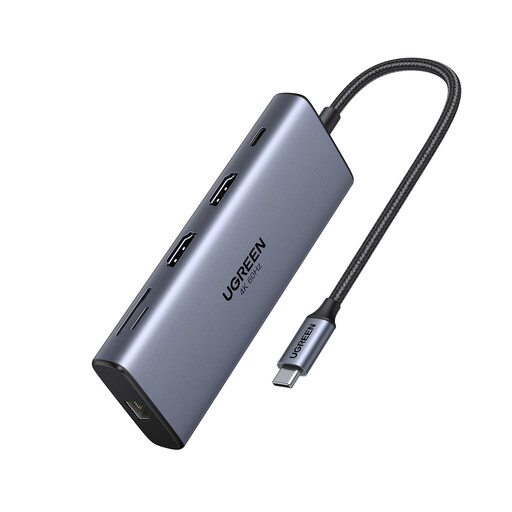
Why it stands out: The creative's workstation. This dock takes things to the next level with its dual 4K at 60?Hz output and ultra-fast data ports.
Pros:
- Dual 4K at 60?Hz display: Its two HDMI ports let you connect two 4K monitors with perfect fluidity, whether you're on macOS or Windows (with MST support).
- Supersonic transfers: Equipped with USB-C 3.2 and USB-A 3.2 ports offering speeds up to 10 Gbit/s, perfect for handling large files.
- 100?W fast charging: The Power Delivery port supports up to 100 W, enough to power even the most demanding laptops.
- Expanded connectivity: It offers a total of 10 ports, including Ethernet, card readers, and a full array of USB ports.
Who is it for? Ideal for content creators, developers, and all power users who juggle multiple screens and large files.
Apple USB-C Digital AV Multiport Adapter
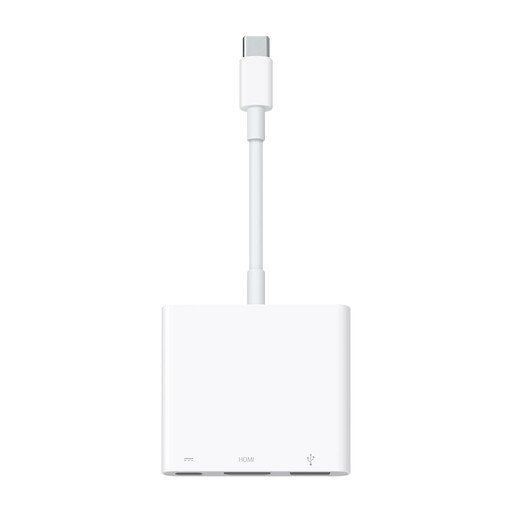
Why it stands out: The obvious choice for the Apple ecosystem. The official solution from Apple, it's all about simplicity, reliability, and seamless integration.
Pros:
- Seamless integration: Guaranteed "plug-and-play" operation with Macs, iPads, and even iPhones equipped with a USB-C port.
- 4K at 60?Hz video: Supports video output up to 3840 x 2160 at 60 Hz on recent compatible Apple devices.
- Simplicity first: Zero configuration. It gets straight to the point with three essential functions: video output (HDMI), peripheral connection (USB-A), and charging (USB-C).
- True to Apple's design: Compact, lightweight, and featuring the minimalist aesthetic the brand is known for.
Who is it for? For die-hard fans of the Apple ecosystem looking for a reliable, minimalist solution for the essentials: connecting a display, charging, and connecting a USB peripheral.
Looking for Other Options?
Our selection covers the most common scenarios. But if you have more specific needs (more USB-A ports, a DisplayPort output, a particular form factor...), the selection doesn't end there.
? Discover our full range of USB Hubs for PC to find the model that's right for you.
Frequently Asked Questions
1. Can a USB-C hub slow down my connection or transfers?
A high-quality hub is designed to manage bandwidth intelligently and shouldn't cause any noticeable slowdown in normal use. However, using all ports simultaneously at their maximum capacity (for example, transferring files to an external drive while using a 4K display and an Ethernet connection) can push the bandwidth limits of your computer's USB-C port.
2. Do I need to install drivers to use a USB-C multiport adapter?
Nearly all modern USB-C hubs are "plug-and-play." No drivers are required on operating systems like Windows 10/11, macOS, or recent Linux distributions. Your system will automatically recognise the device and its various ports as soon as you plug it in.
3. What is the difference between a USB-C hub and a docking station (dock)?
The line is increasingly blurry, but to put it simply: a USB-C hub is more compact, portable, and typically powered by the computer's port (known as "bus-powered"). A USB-C docking station is larger, designed for a fixed desk setup, has its own AC power adapter, and offers much richer connectivity, capable of supporting more complex setups (multiple monitors, numerous peripherals, etc.).